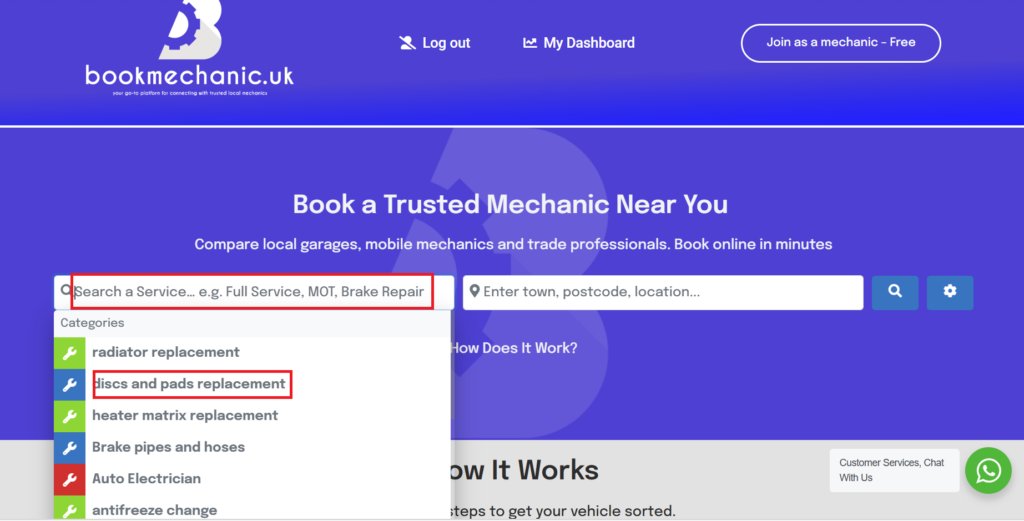
The vehicle owner is prompted to search a service, tag or mechanic if name is known.
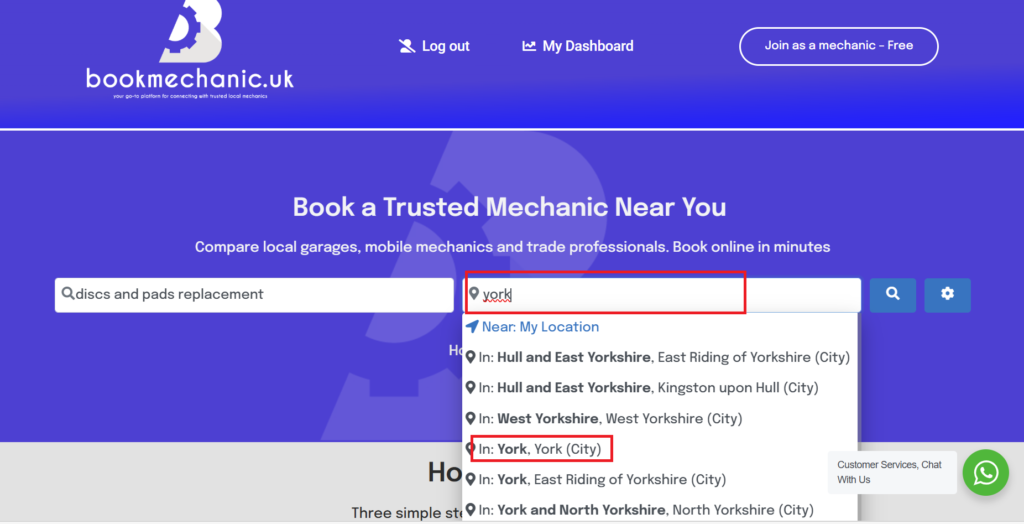
Next is to entre there town city or postcode.
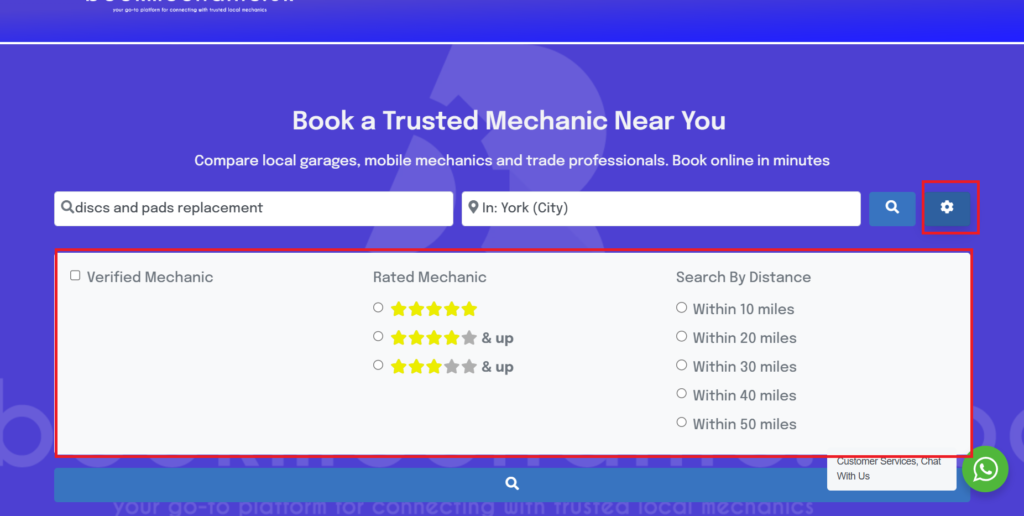
An advanced search field is available to extend or minimise options
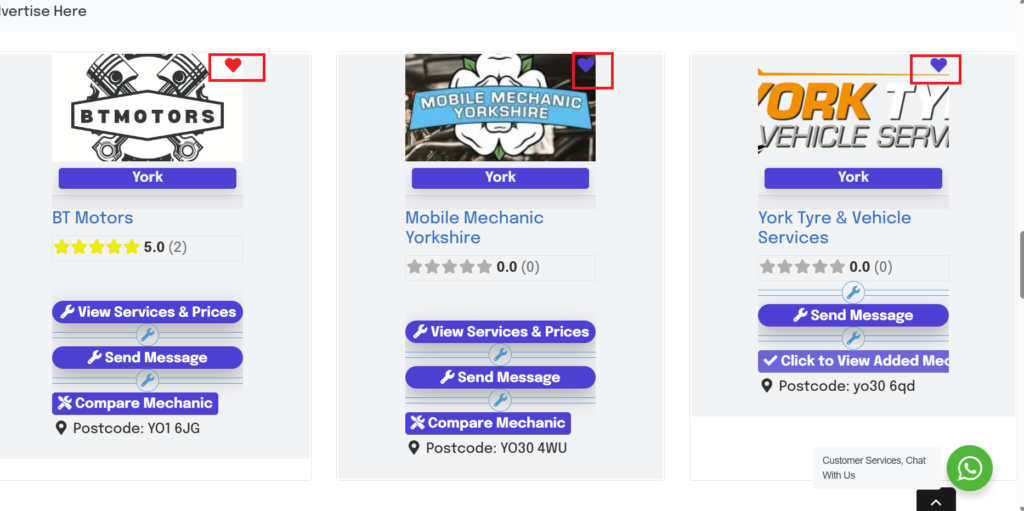
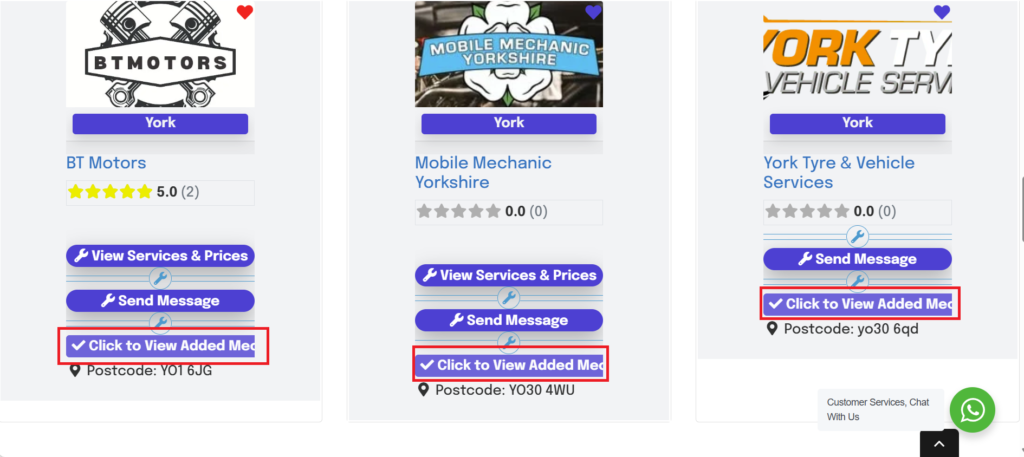
The vehicle owner is then re-directed to the search results archive.
From here the vehicle owner can save the mechanic to there dashboard by selecting the heart symbol.
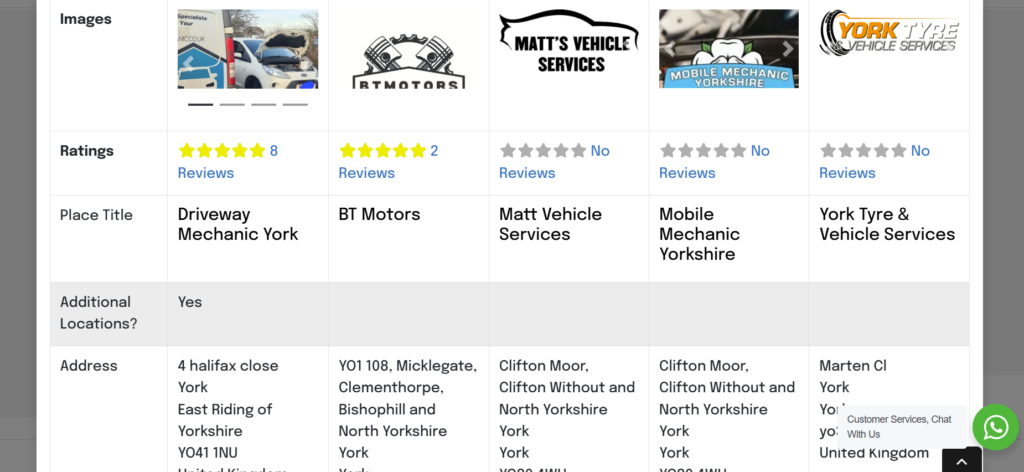
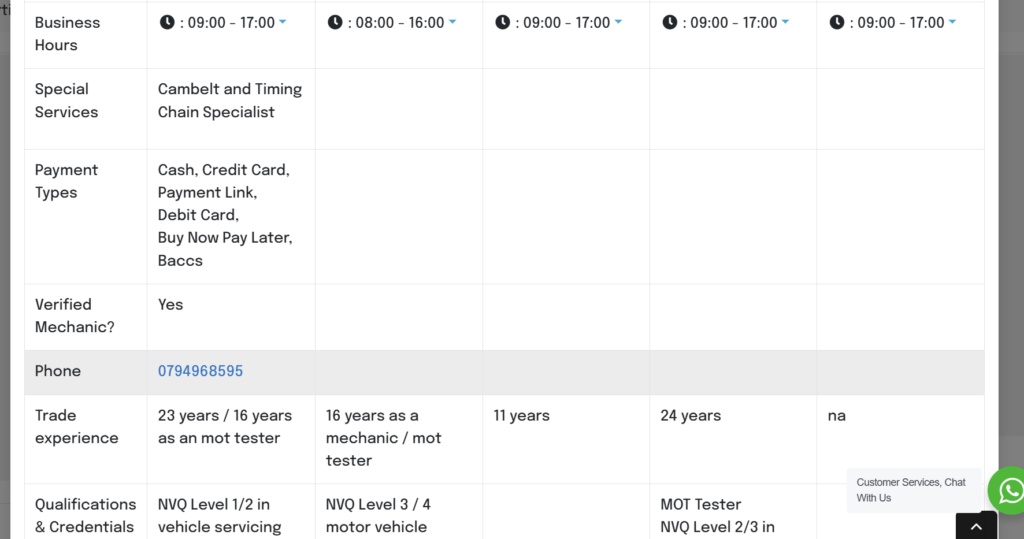
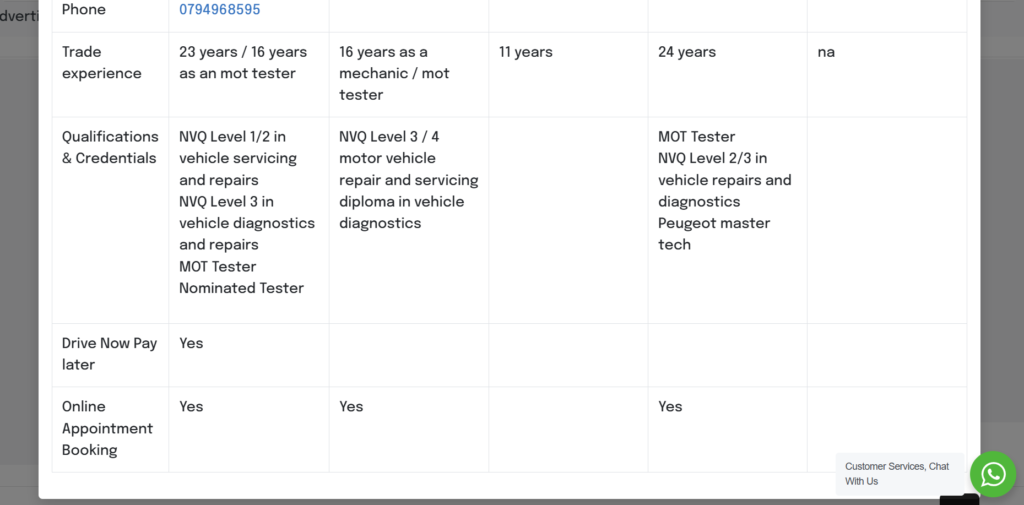
The Compare button is also selected on the listings page and the profile page.
Click the compare button once to add that mechanic, press twice to view the selected mechanics.
The Vehicle owner can see everything the mechanic has filled in on there profile so click here to edit and add sections to your profile Edit My profile Listing
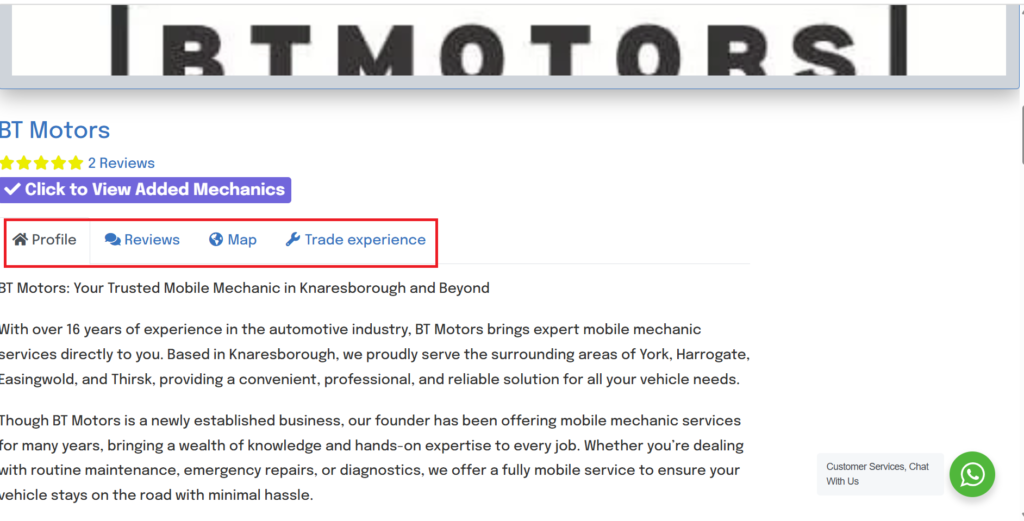
Once the vehicle owner selects a mechanic or garage they will open the full profile to take a deeper look at your bio, reviews, experience and qualifications.
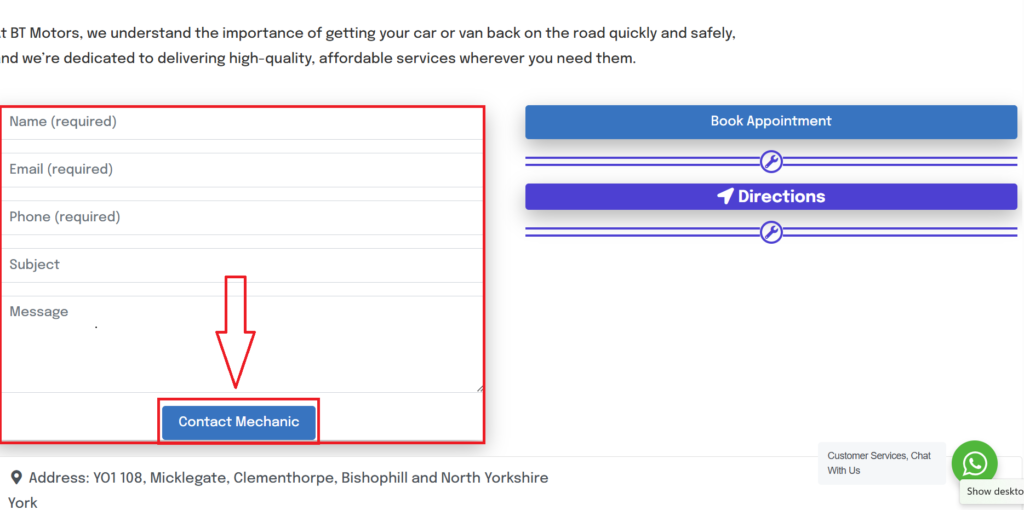
below the bio is a lead for the vehicle owner can fill out, the mechanic will be informed by email and the lead can be found in the mechanic dashboard. How To Access My Leads
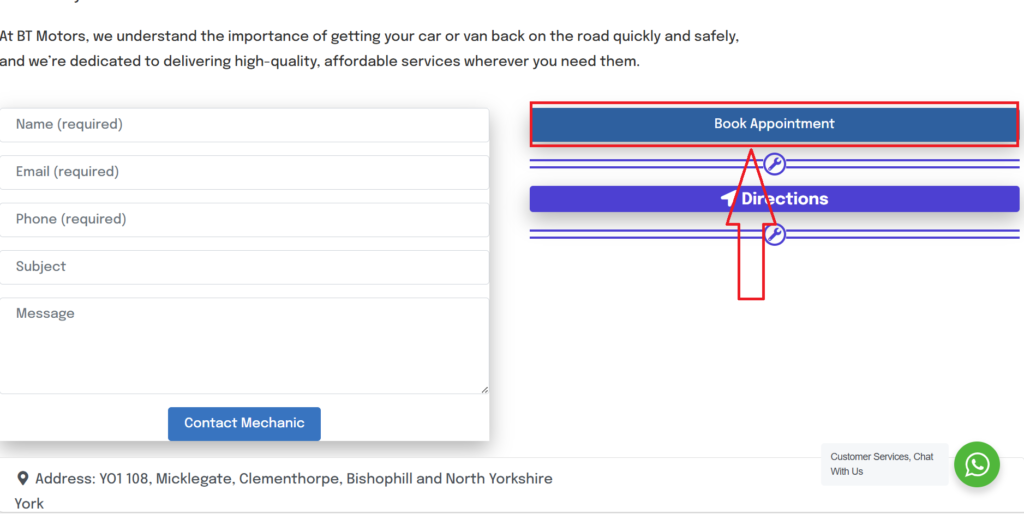
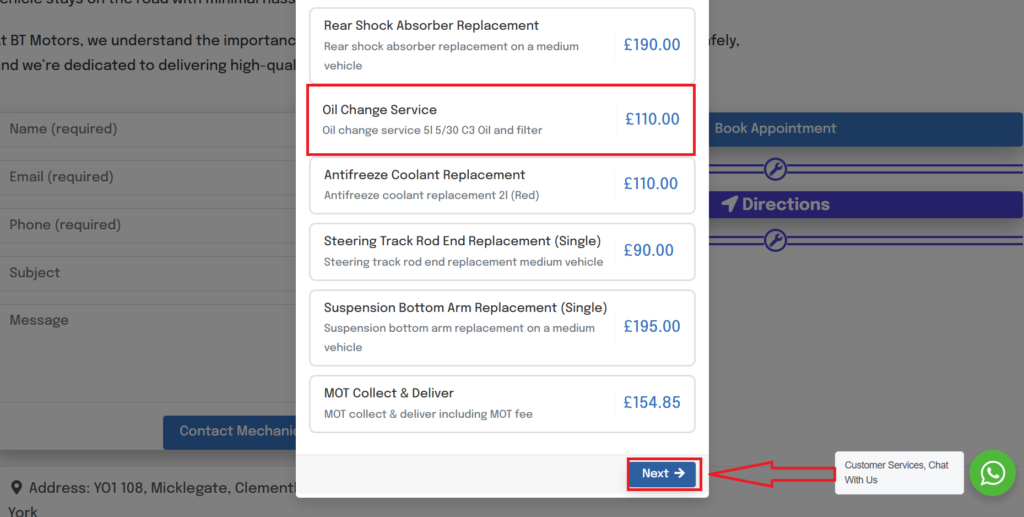
The vehicle owner can also view your services and prices from here so make sure you set up your booking tool, it may take a bit of time but is worth it (we have a default setting you can use and adjust as needed) Setting Up My Appointment Tool
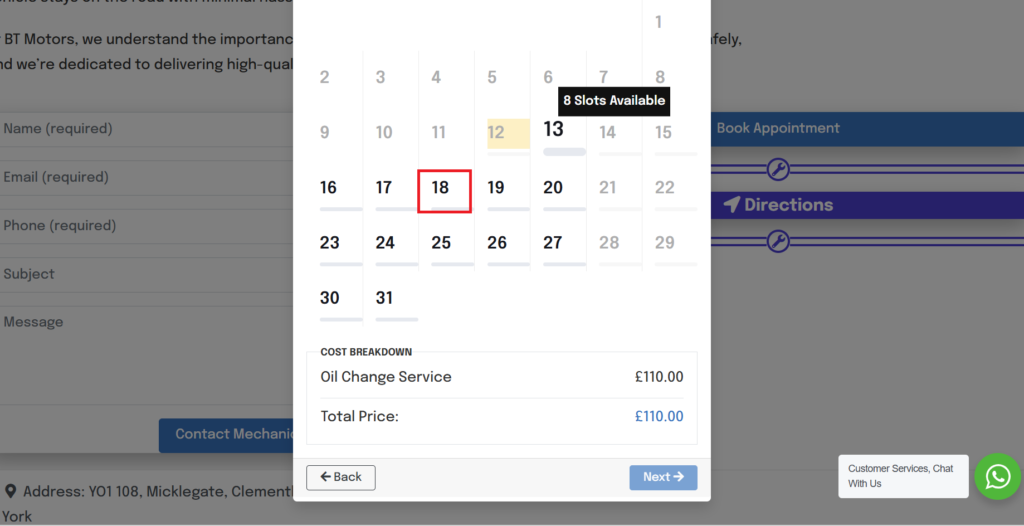
Here you can see our default booking list the vehicle owner can select a service.
An available date – this can also be linked to automatically entre into certain calendar systems.
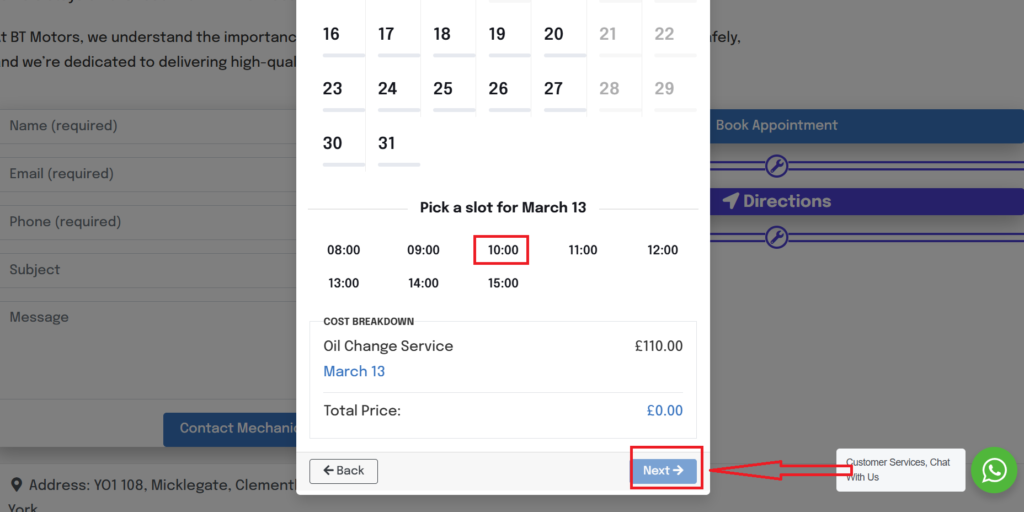
Select time and select next.
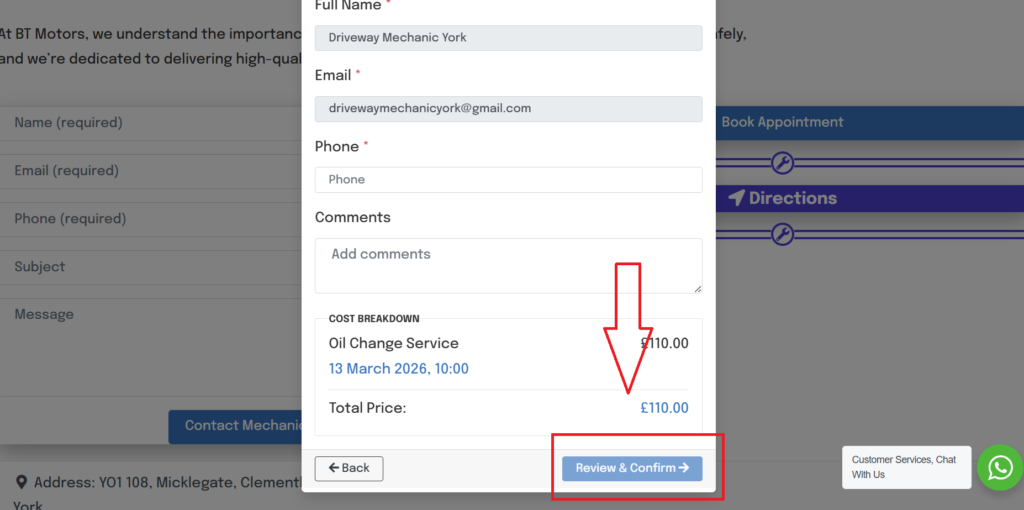
The last step the vehicle owner enters there details and just like your lead form, you and the vehicle owner will be notified by email and the booking will land in your dashboard but…… you will need to go in to “Appointment Requests” and accept / reject / adjust date and time. How To Access My bookings.
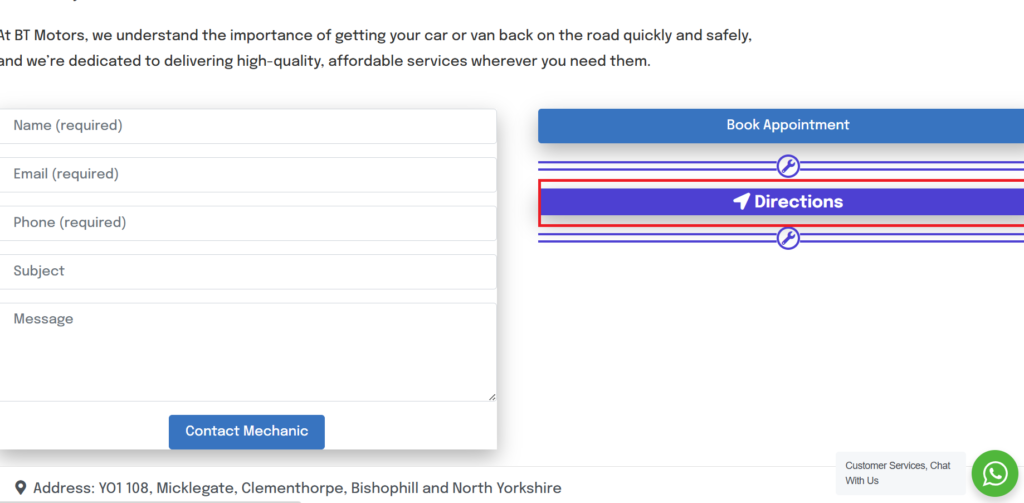
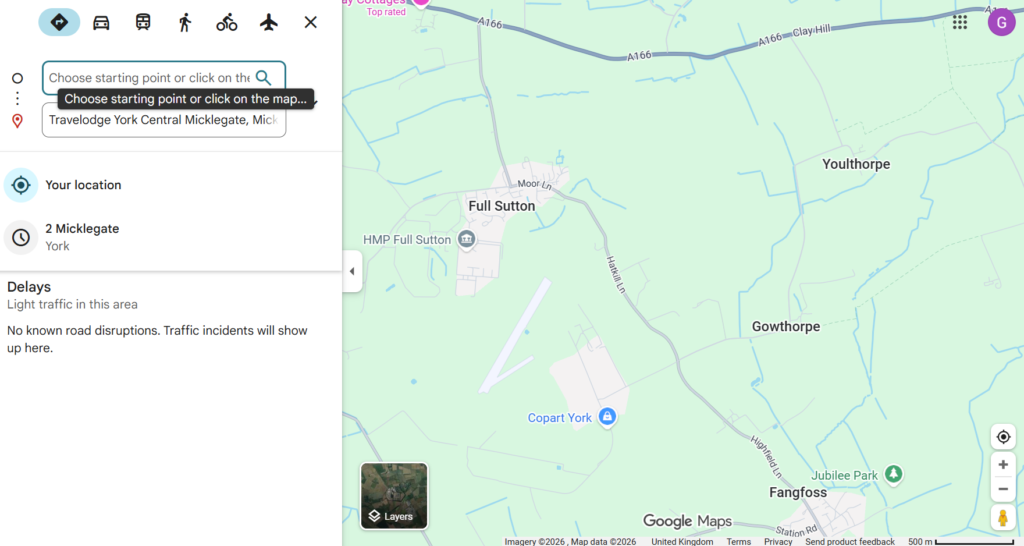
We have a handy direction locator connected to google maps so make sure your location details are correct if your a garage.
This feature is mainly used on mobile phone devises.
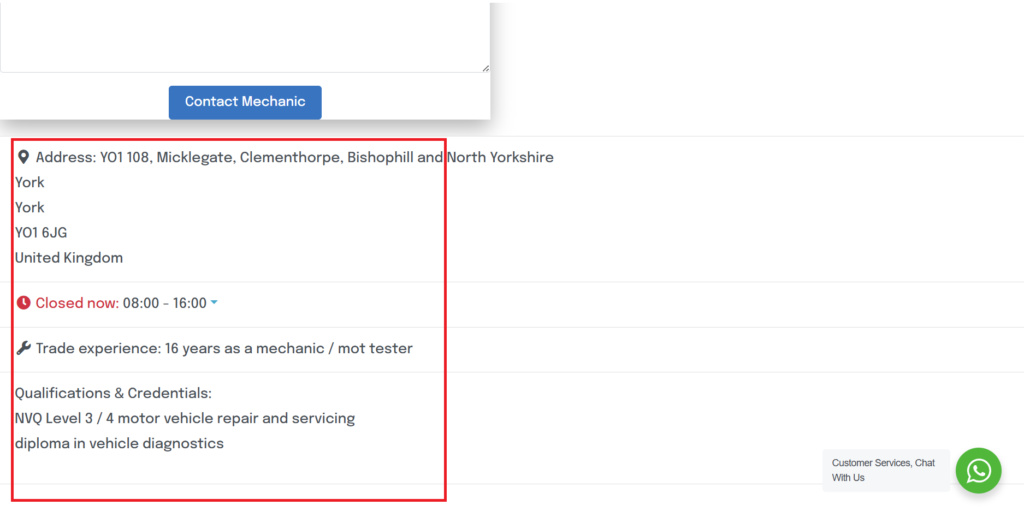
Further down the profile we re showcase opening hours , qualifications and trade experience.
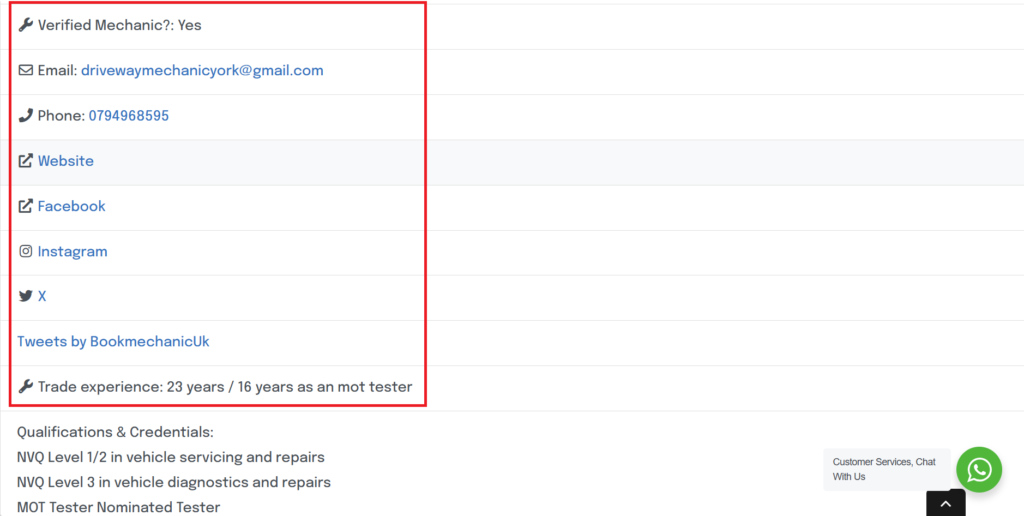
verified mechanics show direct contact details with links to websites, social and emails.
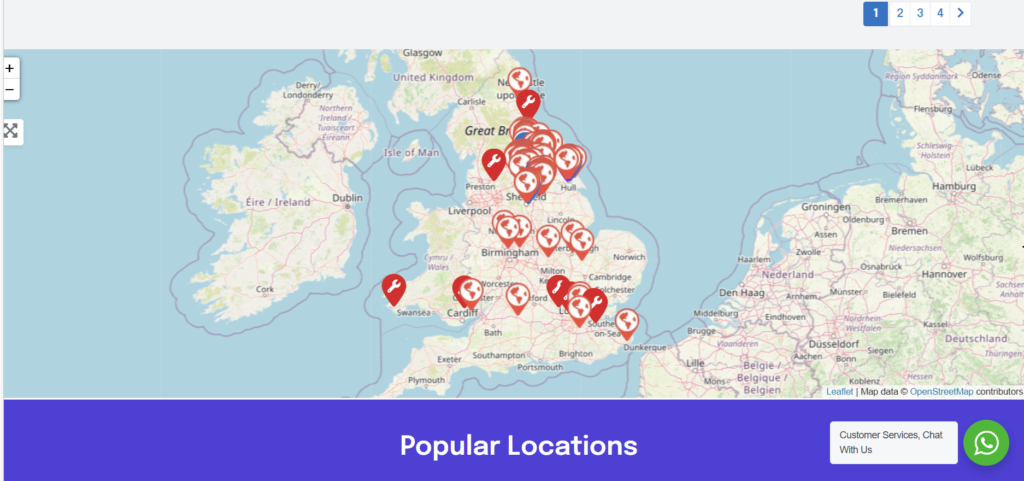
Vehicle owners can also search on national and local map grids.
By bookmechanic.uk|2026-03-12T23:01:34+00:0016 May 2025|Comments Off on How it works? Overview